
Adding Vehicles
August 2, 2024
Bulk Upload
If you have an existing vehicle register, the team at Mutu can help you import this quickly via a spreadsheet. We highly recommend a stocktake beforehand to ensure the information is as accurate as possible.
Upload by Phone or Computer
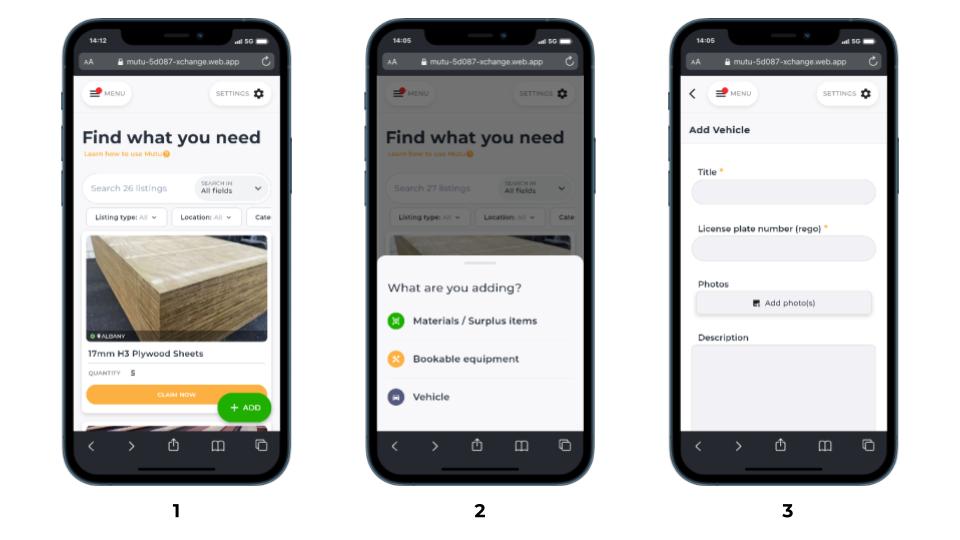
- Step 1 – Press / click the green ‘+’ in the bottom right hand corner.
- Step 2 – click to add ‘Vehicle’.
- Step 3 – follow the step by step instructions to add the equipment.
Vehicle Upload Fields
| Title | Choose a format and keep it consistent for all vehicles |
| License plate number (rego) | Add the license plate number e.g. ABC123 |
| Photos | Take photos with your phone or choose from your gallery. |
| Description | Any information you think may be of value to users viewing this vehicle listing |
| Categories | These are searchable terms you can link to items to help you search, filter and report on items on Mutu. You can select existing categories or create new categories depending on your permissions. |
| Vehicle Manager | The person responsible for managing the fleet across your business |
| Permanently assign this to someone | Toggle on and off to assign items to people indefinitely. Turning this on mean the vehicle is not searchable in the Discover Screen. |
| Year, Colour, Make & Model | These fields are searchable and help make the vehicle easier to find |
| Vehicle type | Define what type of vehicle you are adding e.g. ute |
| Current odometer in km | The odometer reading at time of adding the vehicle |
| Set up road user charges (RUC) reminder | Turn this on and enter the next RUC expiry in kms to receive a notification / email when the odometer gets within 250km |
| Set a Reminder (WOF, Rego, service etc) | This optional feature allows you to set a reminder against the vehicle. When the reminder triggers any named recipients will receive a notification as well as the person who’s toolkit the item is in if booked out. |
| Attachments | Add any PDF or jpeg attachments to the item such as engineering documents or records of inspection. |
Searching for Vehicles
Discover Screen
Vehicles will not show on the Discover screen in they are permanently assigned.
Equipment Register
All vehicles can be found on the Equipment Register.
Filtering
You can filter by Item Type (equipment or vehicle), Location and Item Manager.

If the ‘Currently With’ column on the right is populated, it means that the item is booked out or permanently assigned to someone.
You can tell something is permanently assigned by the green pin: 
Downloading Asset Register
You can download you equipment register by clicking Equipment/vehicles > Download on the right hand side of the screen.
You can contact the Mutu support team at any time via support@mutu.freshdesk.com