
How To
Define User Roles
January 30, 2024
To configure permissions and create new roles, click on Settings > User Roles.
The account creator will be set up as an Admin, however all new users are added as a ‘User’ role by default and will need to be changed here if necessary.
To create a new user type:
- Click the yellow + on the right hand side.
- Enter a name for your new user type.
- Select the permissions you’d like the user to have.
- Click “Save changes”.
An explanation of permissions can be found in User Permissions Explained.

User Permissions Explained
Booking
| Book Equipment | Is able to book equipment |
| Admin Booking Options | Book and reassign equipment on behalf of other people. Edit and delete items on behalf of other people.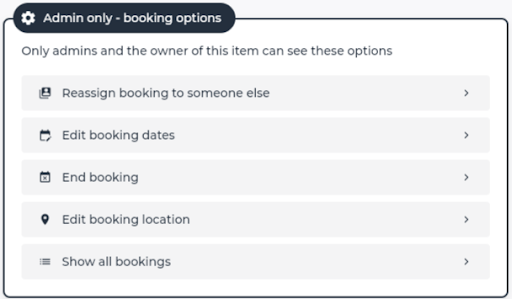 |
| Book without Approval | The user can book available equipment without approval from an Equipment Manager or listing creator. |
| “Ask for this item” is approved automatically | When this permission is enabled, a ‘reassign to myself’ button becomes visible when you click on an item booked by someone else. The user may still ask for the item (left button) and go through the approval process.  |
| Reassignments from toolkits are automatically approved | When a user clicks in the toolkit and reassigns an item to another user, the transaction is completed without the recipient approving the reassignment. |
Items
| Add materials | When the user clicks the add (“+”) button, they have the option to add materials.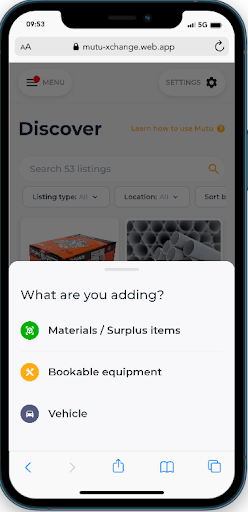 |
| Add equipment | When the user clicks the add (“+”) button, they have the option to add equipment. |
| Add vehicles | When the user clicks the add (“+”) button, they have the option to add equipment. |
| Choose if booking requests for equipment need approval | If unchecked, booking requests will be automatically approved. use this option if you trust staff to complete the transfer of the equipment. |
| Add categories to items | When adding an item, the user can create and select searchable categories to link to the item. 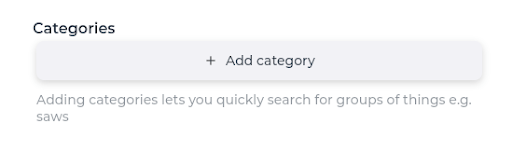 |
| Permanently assign equipment | Gives you the option to assign a piece of equipment to someone indefinitely. They will not have the ability to reassign or move the item outside of their toolkit eg work laptops and vehicles.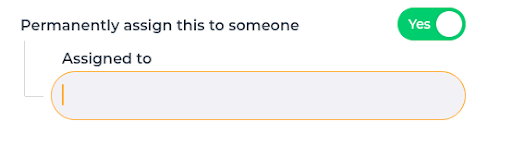 |
| Edit or delete items in your possession | With this permission you will have the following permissions enabled: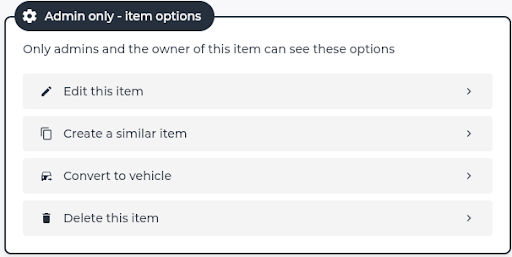 |
| Edit and delete all items | You may delete or edit any item in this organisation. |
| See ‘Equipment/Vehicle’ tab | Gives the user the ability to see the asset register.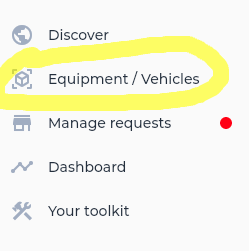 |
| Is responsible for the management of equipment/vehicles across the organisation | This means that the user can be selected as ‘Equipment Manager‘ and will receive requests to book the equipment.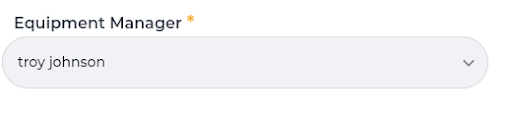 |
Organisation Management
| Edit organisation details | These details include your organisation: – name – website – the option to assign users to locations |
| User Management | Gives you the ability to add, delete modify users |
| Create and edit user roles | Add and edit different types of users as explained in User Roles |
| Location Managment | Add, edit and delete locations |
| View all organisation’s transactions | View and filter all material transactions on the platform. You can filter by: – Accepted – Pending – Rejected – Cancelled 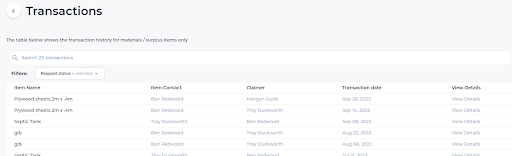 |
| Accept of decline on all organisation claim/booking requests | Action anyone in the organisation’s bookings and transactions. |
Dashboard
| View the sustainability dashboard | Users will see and have access to the sustainability dashboard. |
| Download sustainability report | Can download the sustainability report as PDF. |
Toolkit
| Conduct Toolkit check-ins | The ability to trigger toolkit check-ins.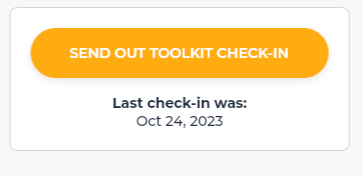 |
| View and act on all toolkit check-ins | Allows you to resolve issues that arise from check-ins.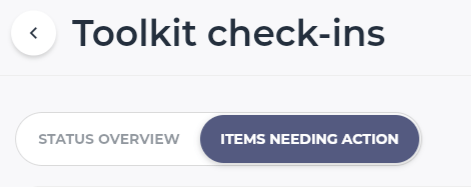 |
| Reassign button is visible in toolkit | You can reassign bookable equipment to other users. It will be removed from your toolkit and added to theirs. |
Reminders
| View all organisation reminders | View reminders that other people in the organisation have created. 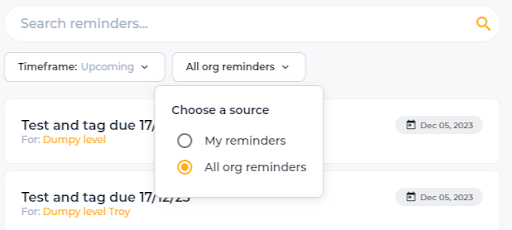 |
You can contact the Mutu support team at any time via support@mutu.freshdesk.com